Key Takeaways

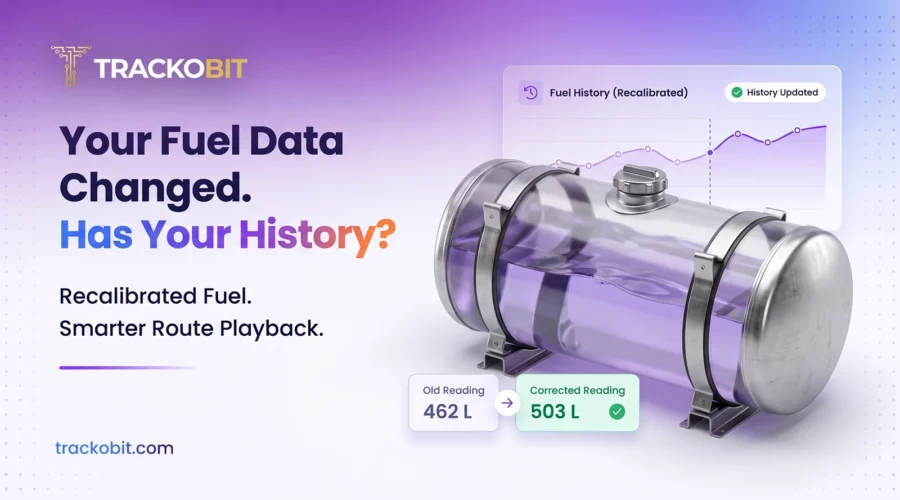
- When you update a fuel sensor calibration in TrackoBit, it now recalculates fuel data for the previous 10 days. Your fuel reports show corrected values for that period.
- Vehicle History Playback now shows vehicle-type icons and state-based colours. Running and halted stretches of a trip are easy to tell apart.
Fuel sensor calibration converts a sensor’s raw readings into litres for your tank. When you update a calibration in TrackoBit, it recalculates the previous 10 days of fuel data, and Vehicle History Playback shows running and halted stretches by colour.
Most fleets treat a calibration fix as a fresh start. The sensor is corrected, the readings look right again, and the matter feels closed.
The problem is the days before the fix. Those figures were recorded against the old calibration. Until now, they stayed in your reports unchanged.
TrackoBit’s latest update closes that gap. It also changes how you read a trip once it is over.
What Is Fuel Sensor Calibration?
A fuel level sensor reports a raw signal. Calibration converts that signal into litres for your specific tank.
The usual method is to fill the tank in measured steps, from empty to full, and record the sensor reading at each step. Sensor manufacturer Omnicomm’s calibration guide walks through the process.
Why Calibration Gets Corrected
Calibration is not a one-time job. You may need to correct it when:
- A fuel sensor is replaced.
- Readings drift over time.
- Reported levels stop matching actual refills.
TrackoBit’s Fuel Sensor Maintenance and Calibration Guide recommends recalibrating as soon as you spot sensor drift.
What Happens to Old Fuel Data After You Recalibrate?
Previously, a correction applied only to data recorded after you made the change.
Now, when you update a calibration, TrackoBit recalculates fuel data for the previous 10 days. Your fuel reports show the corrected values across that whole window.
| Fuel Data | Before this update | After this update |
| Data after the calibration change | Corrected | Corrected |
| Previous 10 days | Old figures | Recalculated with the new calibration |
| Fuel reports for that period | Mixed old and corrected values | Corrected values throughout |
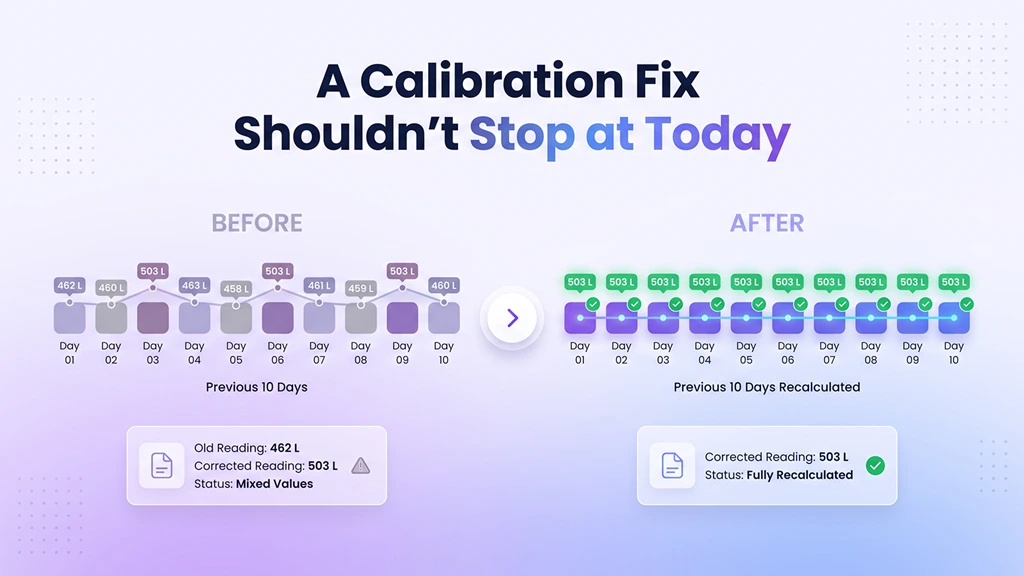
See how recalibration corrects the previous 10 days of fuel history.
Why Corrected Fuel History Matters
TrackoBit’s fuel monitoring system works with fuel sensors from different brands. It records refills with time, location and volume. It also flags drainage and reports mileage and cost per kilometre.
Every one of those outputs depends on the calibration underneath it. Recalculated history keeps them accurate for the days that matter most:
- Fuel reconciliation: Your spend matches the corrected consumption, not the old readings.
- Drop investigations: You can judge a fuel drop against accurate levels.
- Disputes: A fuel figure you share with a client or auditor holds up.
What to Do After Every Calibration Change
- Update the calibration in TrackoBit.
- Re-run fuel reports for the previous 10 days.
- Re-check any refill, drainage or mileage figures you shared during that window.
How Does GPS Route Playback Show What a Vehicle Was Doing?
Vehicle History Playback replays a recorded trip on the map. TrackoBit’s GPS tracking software already supports trip history and route replay.
A route line shows you where a vehicle went. It does not show you what the vehicle was doing along the way. Playback now does both.
- Vehicle-type icons. Each vehicle appears with an icon for its type, so you know what you are following before reading a label.
- State-based colours. The vehicle changes colour with its state. Running and halted stretches each have their own colour.
Halts now stand out without opening timestamps. When you review a trip, scan the colour changes first, then look closer where it matters.
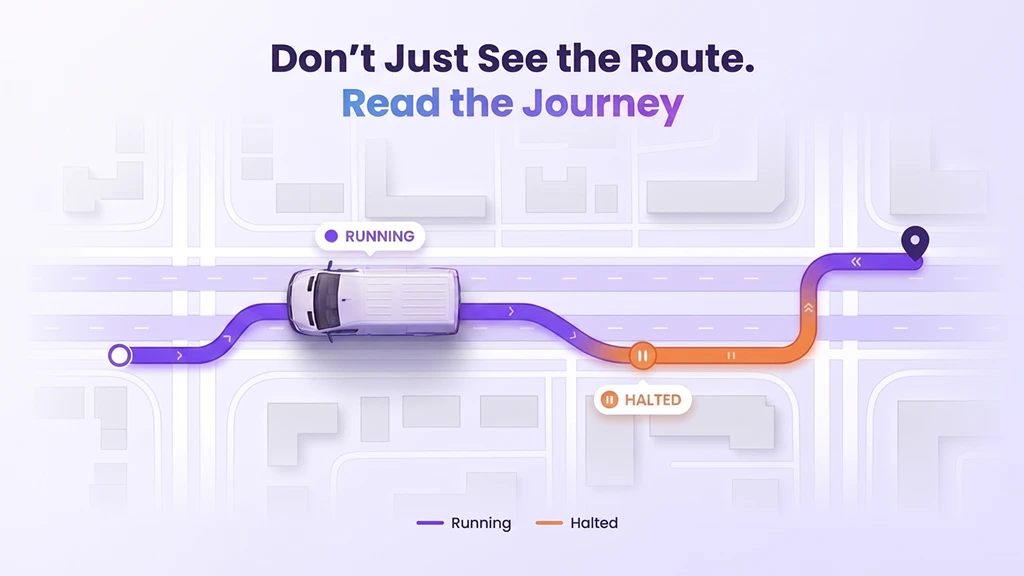
Distinguish running and halted stretches through colour-coded route playback.
Part of a Complete Fleet Management Platform
Both updates sit inside TrackoBit’s wider fleet management software. The same platform covers:
- Real-time GPS vehicle tracking and trip history
- Fuel monitoring with refill and drainage alerts
- Driver behaviour monitoring
- Video telematics with ADAS and DMS
- Route planning
- Cold chain monitoring and asset tracking
TrackoBit is rated 4.7/5 across 593 reviews on platforms including Capterra and Trustpilot.
Where These Updates Help Day to Day
- If you have just replaced a fuel sensor, your recent fuel history now reflects the new calibration. You don’t need to explain away the old figures.
- If you reconcile fuel spend monthly, the last 10 days of your period carry corrected values.
- If you review trips after a complaint or a delay, playback shows where the vehicle halted at a glance.
- If you track several vehicle types, the icons tell you what you are reviewing straight away.
Also, in This Release
The same release brings mobile closer to Web:
- ADAS and DMS alerts: ADAS and DMS alerts on iOS now come with evidence cards. On Android, they get an alarm list and cards.
- Fuel Report Dual View: on iOS, you can read fuel data by time or by distance.
- Expenses: both apps now support expenses in TB Track and TB Global.
On the web, processing is faster and three new device types are supported. See the full list in TrackoBit’s release notes.
See It in Your Fleet
Corrected fuel history and clearer playback are live in TrackoBit’s web app. Book a free demo to see them on your own fleet data.

Frequently Asked Questions
-
What is fuel sensor calibration?
It is the process of converting a fuel sensor’s raw readings into litres for a specific tank. The tank is usually filled in measured steps while the readings are recorded.
-
What happens to fuel data after you recalibrate a sensor in TrackoBit?
TrackoBit recalculates fuel data for the previous 10 days, so your fuel reports show the corrected values for that period.
-
Is fuel data older than 10 days recalculated?
No, recalculation covers the previous 10 days only.
-
How do you spot halts in TrackoBit's route playback?
By colour. Running and halted stretches each have their own colour, and each vehicle shows an icon for its type.
-
How often should a fuel sensor be calibrated?
Recalibrate whenever a sensor is replaced or its readings drift. TrackoBit’s calibration guide includes a maintenance checklist.

Apoorva Raizada is the Content Marketing Manager at TrackoBit. With over a decade of experience across media, advertising, and B2B SaaS, she brings a sharp editorial mindset to technology-led business... Read More


Related Blog
Fleet Ownership: A Complete Guide for Business Owners
Fleet ownership means owning and managing commercial fleet including drivers, fuel, insurance, and maintenance. Dive deeper for a better understanding.
ADAS System in Cars: How It Works and Why It Matters
ADAS road safety system is a technology that uses sensors and software to detect danger and alerts the driver to…
Safer Alerts, Shareable History, Faster Maintenance in TrackoBit
TrackoBit now adds an Evidence Model and authority-based access for ADAS and DMS alerts in video telematics, Vehicle History Sharing…
Fleet Management Requirements: The Complete Guide for 2026
Every wondered what exactly fleet management requirements are? Or, why do they matter? This guide helps you understand in detail.


Your inbox awaits a welcome email. Stay tuned for the latest blog updates & expert insights.
"While you're here, dive into some more reads or grab quick bites from our social platforms!"Stay Updated on tech, telematics and mobility. Don't miss out on the latest in the industry.